Web Interstitial is one of the highest-performing ad formats in Google Ad Manager, often generating higher eCPMs than standard display ads when used appropriately. That’s why many publishers include it as part of their monetization strategy.
However, maximizing the benefits of Web Interstitials isn’t just about enabling the format—it’s about choosing the right trigger settings. Selecting the appropriate trigger ensures ads appear at the right moment, helping publishers balance revenue with a seamless user experience. In this article, we’ll walk through every available Web Interstitial Trigger in Google Ad Manager, its ideal use cases, and best practices for choosing the right configuration based on your website.
Understanding Web Interstitial Triggers in GAM
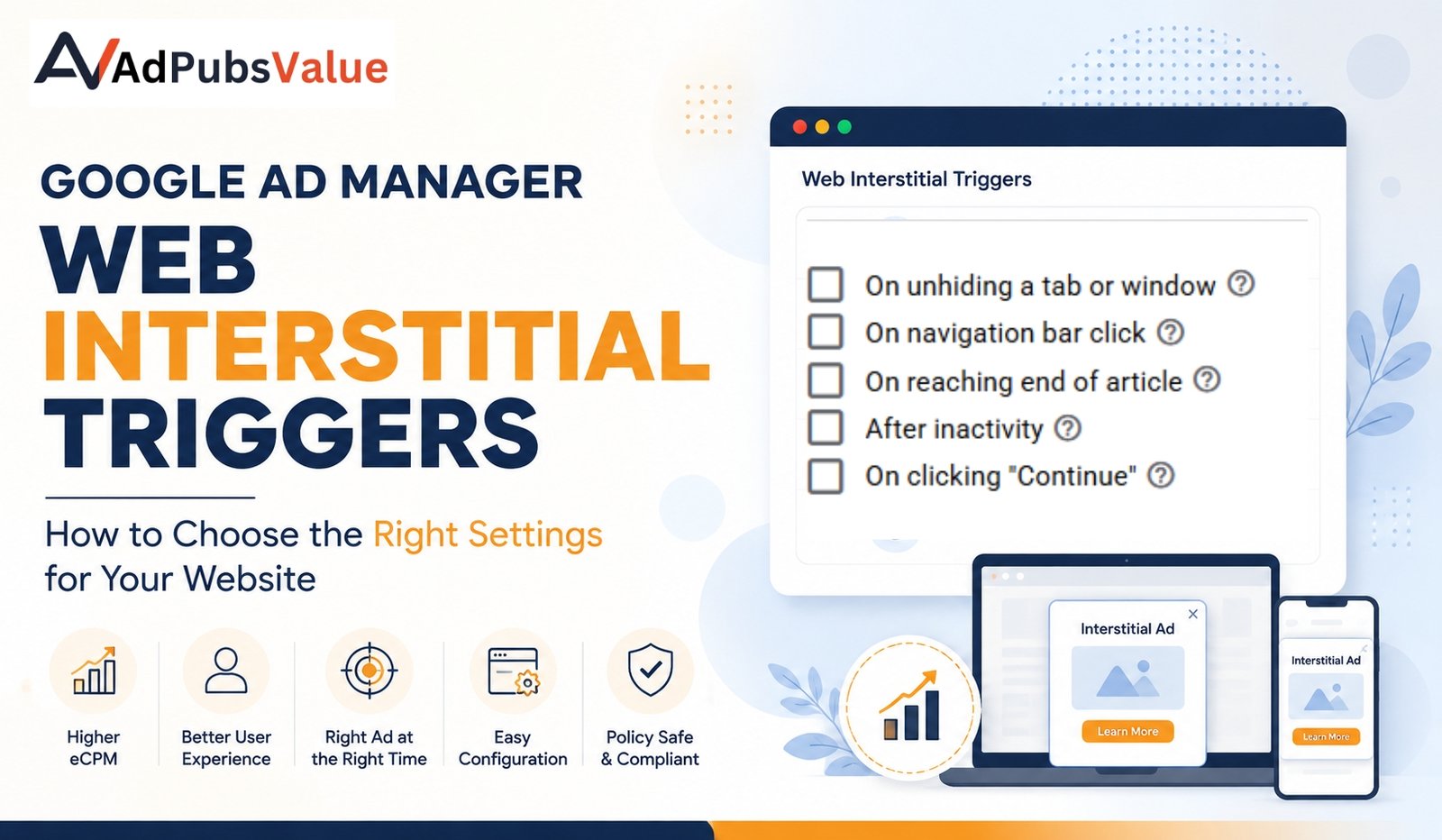
Google Ad Manager allows publishers to decide when a Web Interstitial becomes eligible to appear. Instead of showing an interstitial randomly, publishers can configure triggers based on specific user interactions such as reaching the end of an article, returning to a browser tab, clicking a navigation bar, remaining inactive, or clicking a “Continue” button.
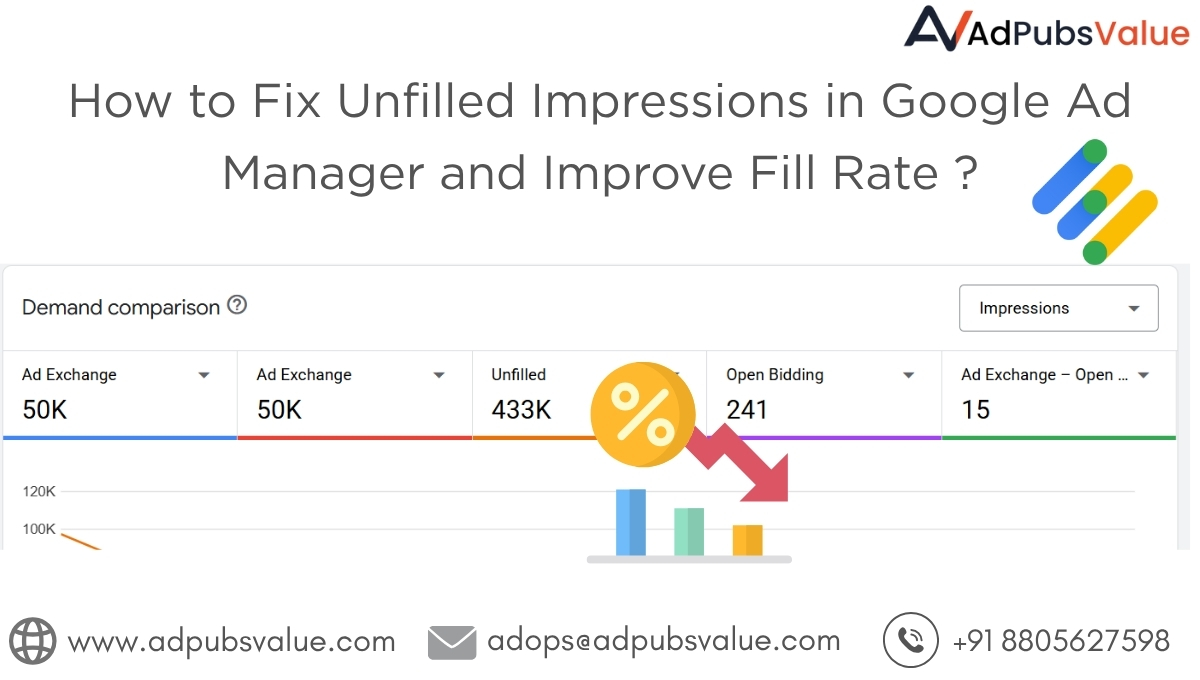
Also Read This : Reduce Unfilled Impressions and Improve Fill Rates
Where Can You Find Web Interstitial Trigger Settings in Google Ad Manager?
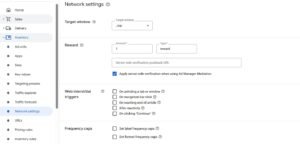
Before selecting a trigger, it’s important to know where these settings are available within Google Ad Manager To access Web Interstitial Trigger settings:
- Sign in to your Google Ad Manager account.
- Navigate to Inventory.
- Click Network settings.
- Scroll down until you find the Web Interstitial Triggers section.
- Enable the trigger(s) that best match your website’s browsing experience.
Google Ad Manager Web Interstitial Triggers : Which One Should You Use?
On Unhiding a Tab or Window
The On unhiding a tab or window trigger allows a Web Interstitial to become eligible when a visitor returns to your website after switching to another browser tab or application. Instead of interrupting users immediately after the page loads, this trigger waits until they actively return to your website. Because of this, it is generally considered one of the less disruptive trigger options.
This trigger works particularly well for websites where users frequently switch between multiple browser tabs while consuming content.
Best suited for
- News portals
- Stock market websites
- Research websites
- Forums
- Documentation sites
- Financial Info Blog
Benefits
- Doesn’t interrupt the initial page visit.
- Uses a natural re-engagement moment.
- Helps maintain a smoother reading experience.
- Suitable for long-form content websites.
Things to Consider
Publishers should still monitor user engagement after enabling this trigger. Visitors who frequently switch between tabs may encounter interstitials more often than intended if frequency controls are not configured appropriately.
Recommendation: A strong choice for publishers focused on content consumption and long reading sessions. Avoid excessive frequency, especially for users who frequently switch tabs.
On Navigation Bar Click
The On navigation bar click trigger makes a Web Interstitial eligible when visitors click your website’s navigation menu.Since users are already moving from one section of the website to another, this trigger takes advantage of a natural transition rather than interrupting active reading.
For websites with multiple categories, this trigger often provides a better experience than displaying interstitials during page consumption.
Best suited for
- Multi-category news portals
- E-commerce blogs
- Recipe websites
- Magazine websites
- Large content portals
Benefits
- Appears during natural navigation.
- Doesn’t interrupt article reading.
- Works well for websites with frequent category browsing.
- Creates monetization opportunities during page transitions.
Things to Consider
If your navigation menu is used very frequently, monitor user engagement carefully to ensure the browsing experience remains comfortable.
On Reaching End of Article
The On reaching end of article trigger allows a Web Interstitial to become eligible once a visitor has finished reading the main content on your webpage.
Among all available trigger options, this is often considered one of the most user-friendly because it doesn’t interrupt the reading experience. Instead, it waits until the visitor has consumed the content and is naturally ready to decide what to do next.
For content-driven publishers, this creates an ideal opportunity to display an interstitial without affecting the flow of the article.
Best suited for
- Blogs
- Editorial websites
- Long-from guides
- Review Websites
- Tutorial Sites
Benefits
- Doesn’t interrupt content consumption.
- Provides a natural transition after the article.
- Creates a better overall user experience.
- Suitable for long-form content.
Things to Consider
If your website primarily contains very short articles, visitors may reach the end quickly, making this trigger activate more frequently than intended. Monitor user engagement and adjust your overall monetization strategy if necessary.
After Inactivity
The After inactivity trigger makes a Web Interstitial eligible after a visitor has remained inactive on the webpage for a certain period.
Unlike other triggers, this option doesn’t rely on navigation or scrolling. Instead, it detects when user interaction has paused.
This trigger works well for websites where visitors often stop reading temporarily or leave the page open while multitasking.
Best suited for
- Forums
- Wiki websites
- Documentation
- Learning portals
- SaaS dashboards
Benefits
- Doesn’t interrupt active browsing.
- Utilizes periods of inactivity.
- Can create additional monetization opportunities without affecting active readers.
On Clicking “Continue”

The On clicking “Continue” trigger allows a Web Interstitial to become eligible when users intentionally move to the next step of a process.
Unlike navigation clicks, this trigger is designed for websites where visitors perform structured actions.
Examples include:
- Multi-step forms
- Download pages
- Online tools
- Quiz websites
- Calculators
- Course platforms
Since users are already expecting a transition, displaying an interstitial at this point often feels more natural.
Best suited for
- Tool websites
- Download portals
- Online utilities
- Educational platforms
- Interactive web applications
Benefits
- Appears during intentional user actions.
- Doesn’t interrupt reading.
- Fits naturally within multi-step workflows.
Things to Consider
Only use this trigger if your website genuinely contains “Continue” actions. For standard blogs or news websites, other trigger options are generally more appropriate.
Can You Enable Multiple Triggers?
Yes, Google Ad Manager allows publishers to enable multiple Web Interstitial triggers. However, enabling every available trigger isn’t necessarily the best approach. Instead of selecting all triggers, publishers should evaluate how visitors interact with their website and choose only those triggers that naturally fit the user journey. Overusing interstitial triggers may lead to unnecessary interruptions and negatively impact the overall browsing experience.
A well-balanced configuration focuses on showing interstitials at meaningful moments rather than at every possible opportunity.
Best Practices
- Choose triggers based on user behavior rather than revenue expectations.
- Test different trigger combinations before making permanent changes.
- Avoid creating repetitive user experiences.
- Review performance using Google Ad Manager reports.
- Balance monetization with long-term visitor engagement.
Common Mistakes Publishers Make
- Enabling every trigger without testing.
- Selecting triggers that interrupt active reading.
- Ignoring website type.
- Focusing only on impressions instead of user experience.
- Never reviewing trigger performance.
Frequently Asked Questions :
Which Web Interstitial Trigger is Best?
There is no universal “best” trigger. The right choice depends on your website type, content, and visitor behavior.
Can I Enable More Than One Trigger?
Yes. Google Ad Manager allows multiple triggers, but publishers should enable only those that fit their website’s user experience.
Are Web Interstitial Trigger Settings Applied Across My Network?
Yes. These settings are configured under Inventory → Network Settings, making them network-level settings.
Should Every Website Use the Same Trigger?
No. A news publisher, educational website, and online tool all have different user journeys. Trigger selection should reflect how visitors interact with your website.
Do I Need to Recreate My Web Interstitial Ad Units After Changing Trigger Settings?
No. Since Web Interstitial Triggers are configured at the network level, changes generally apply to your Web Interstitial setup without requiring you to recreate your ad units.
Final Thoughts
Choosing the right Web Interstitial trigger is about more than increasing ad opportunities—it’s about understanding your visitors and delivering ads at the right moment. A thoughtful trigger strategy helps maintain a positive browsing experience while supporting your monetization goals.
Instead of enabling every available option, evaluate how users interact with your website, test different configurations, and regularly review performance. Small adjustments to your trigger settings can make a meaningful difference in creating a balanced experience for both your audience and your business.